Geometry & physical scale
Transfer supported model geometry at physical scale, with coordinate handling for supported workflows.
R3M
Revit to 3ds Max for Chaos Corona.
Transfer supported Revit content to 3ds Max for Chaos Corona. Refine the scene, then review later Revit changes before applying updates.
Downloading the installer does not grant paid access. A HAND Account with a verified email is required to download. Activate each product with your license email and serial.
Included with HAND Annual License
From model to visualization
Bring supported geometry, materials, mapping, cameras, and lights into your visualization scene.
Transfer supported model geometry at physical scale, with coordinate handling for supported workflows.
Carry supported Revit materials, bitmap textures, and assignments into a Chaos Corona workflow.
Transfer UV channel 1 and appearance mapping for supported content.
Bring supported Revit camera views and targets into the scene.
Transfer supported lights, including Chaos Corona lights and IES data where supported.
Apply supported Revit changes while preserving supported artist work in 3ds Max.
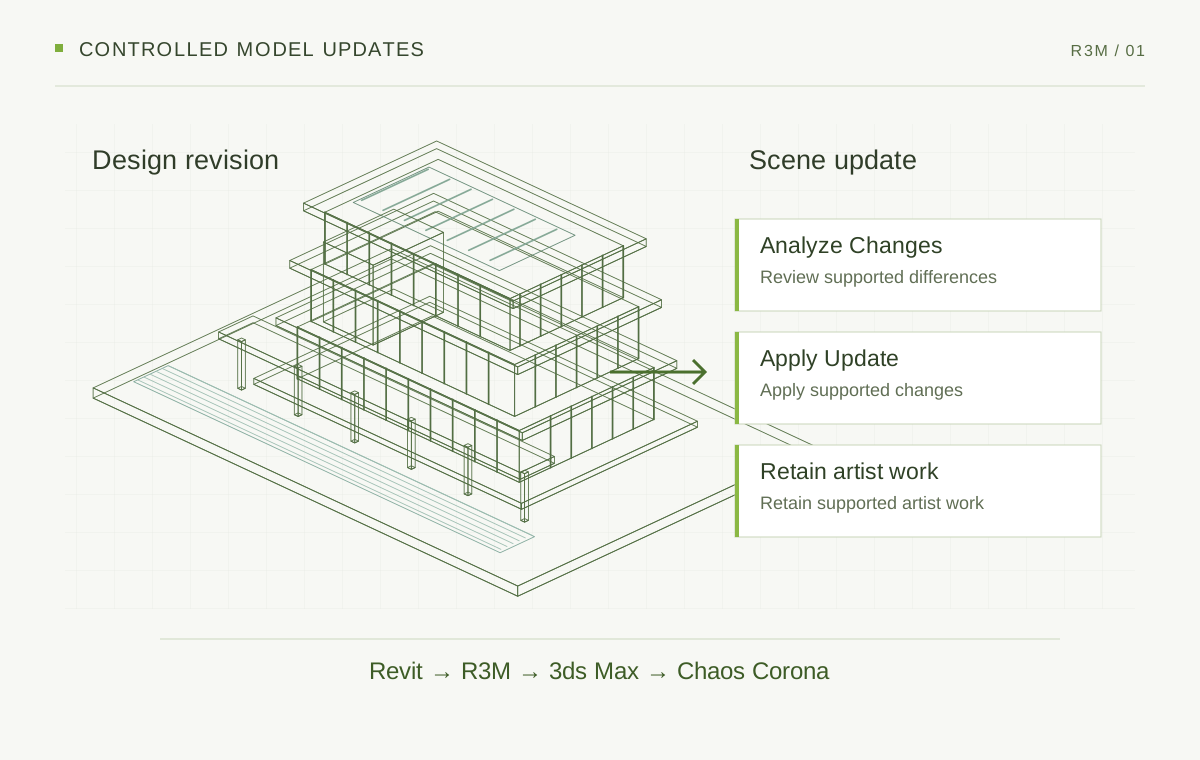
Controlled model updates
When the Revit model changes, use Analyze Changes to review supported differences before applying an update in 3ds Max. R3M preserves supported artist work during updates.
Review supported model changes before updating the scene.
Apply supported model changes while preserving supported artist work. After a successful update, Analyze Changes reports no changes if the supported content is unchanged.
The complete workflow
Export supported design content.
Build the visualization scene.
Work on the scene in 3ds Max.
Make changes to the Revit model.
Prepare the revised content.
Review supported differences.
Apply changes and retain supported artist work.
Support varies by element and workflow. Check support for your project content during evaluation.
30-day free trial
Contact support for current trial availability and access instructions.
 LAND
 STRUXAR3M
HAND Annual License
LAND by HAND, STRUXA by HAND, and R3M share one license email and one serial.